
7. Docker Storage: The Persistence Layer
Docker Storage defines where your files live deciding if they should disappear when the app closes (Ephemeral) or stay safe forever (Persistent).
By default, containers are “stateless.” This means they have a “bad memory” they forget everything once they are deleted. To give them a “long-term memory,” we use different storage types:
- Writable Layer: Every container gets a thin layer to write files. Warning: It is slow and temporary. Never use this for anything important.
- Volumes: The “Gold Standard.” Docker creates a special folder on your computer that only it can manage. It’s the safest and fastest way to store database files.
- Bind Mounts: You point a folder in the container to a folder on your desktop. When you change a file on your desktop, it changes inside the container instantly.
- tmpfs: Used for high-security data. It lives in the computer’s Memory (RAM), not on the Hard Drive.
–
7.1. The Writable Layer: The “Ephemeral” Trap
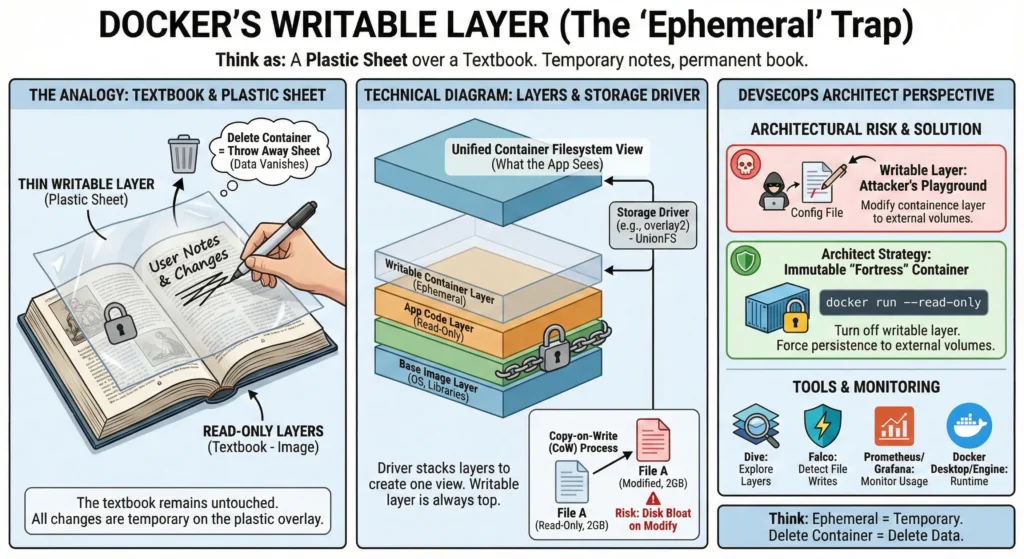
Think of a Docker Image as a printed textbook. You can read it, but you can’t write in it. When you start a container, it’s like placing a clear plastic sheet over the pages. You can use a marker to write notes or cross things out on that plastic sheet.
The Catch: If you throw away the plastic sheet (stop/delete the container), all your notes vanish. The textbook (the image) remains clean and unchanged. This plastic sheet is the Writable Layer.
When you run a container, Docker uses a “Storage Driver” to stack layers on top of each other. This creates a single view of a filesystem.
- Read-Only Layers: These are the foundations (OS, libraries, code). They are immutable (cannot be changed).
- Thin Writable Layer: A tiny layer added at the very top when the container starts. This is where all “changes” live.
- The “Ephemeral” Nature: “Ephemeral” means temporary. Since this layer is tied to the container’s ID, deleting the container deletes the layer.
- Performance (CoW): Docker uses Copy-on-Write. If you modify an existing file from the image, Docker must first find it, copy it to the writable layer, and then edit it. This makes writing slower than a standard hard drive.
- Docker Desktop/Engine – The core runtime.
- Dive – A tool to explore each layer in a Docker image.
DevSecOps Architect Level: UnionFS & Strategy
The Writable Layer is managed by drivers like overlay2. Understanding its mechanics is crucial for building scalable, secure systems.
- The Copy-on-Write (CoW) Overhead – If a container modifies a 2GB file located in a lower read-only layer, the storage driver copies that entire 2GB file into the thin writable layer.
- Risk: This causes “Disk Bloat” and can crash nodes if multiple containers do this simultaneously.
- Architect Solution: Ensure applications never modify large static assets at runtime.
- Security & The “Immutable” Mandate – A writable layer is a playground for attackers. If a hacker gains shell access, they can download malware or modify config files in this layer.
- Architect Strategy: Implement Read-Only Root Filesystems. By using the
--read-onlyflag, you turn off the writable layer entirely. - The container becomes a “fortress” where no files can be changed, forcing all persistence to audited, external volumes.
- Architect Strategy: Implement Read-Only Root Filesystems. By using the
- Prometheus/Grafana – To monitor
container_fs_usage_bytes. - Falco – To detect unexpected file writes in the writable layer in real-time.
–
Use Case: Web Server Logs
- Scenario: You run a Nginx container. It writes access logs to
/var/log/nginx/access.log. - Problem: If you don’t map a volume, these logs occupy the Writable Layer. If the traffic is high, the writable layer grows until the server disk is full. When the container restarts, all your troubleshooting logs are lost.
- Solution: Map
/var/log/nginxto a Persistent Volume or a centralized logging driver (like Fluentd).
–
–
Technical Challenges
| Challenge | Impact | Architect’s Strategic Solution |
| IOPS Bottleneck | High-latency database operations due to CoW overhead. | Bypass UnionFS: Always use Volumes or Bind Mounts for database data folders. |
| Disk Exhaustion | “Zombie” containers filling up /var/lib/docker. | Cleanup Policy: Use docker system prune and set log-rotation limits in daemon.json. |
| Data Loss | Developers forget to persist data for new microservices. | Enforcement: Use the VOLUME instruction in Dockerfiles to signal required persistence. |
| Security Drift | Containers running different versions of a patched file. | Rebuild Policy: Never “patch” a running container; rebuild the image and redeploy. |
–
Practical Lab: The “Read-Only” Test
- Run a standard container:
docker run -d --name test-write alpine sleep 1000
- Try to create a file:
docker exec test-write touch /hello.txt# (This works!)
- Run a secure container:
docker run -d --name test-readonly --read-only alpine sleep 1000
- Try to create a file:
docker exec test-readonly touch /hello.txt- Result: You will get a
Read-only file systemerror. This is the goal for DevSecOps!
- Result: You will get a
–
Cheat Sheet
| Feature | Read-Only Layers | Writable Layer | Volumes |
| Life Span | Permanent (part of image) | Deleted with container | Persistent (lives on host) |
| Speed | Fast (Read) | Slow (Copy-on-Write) | Fastest (Native Host Speed) |
| Best For | App Code, OS Binaries | Temp Configs, small edits | Databases, Logs, User Uploads |
| Security | High (Immutable) | Low (Attackers can hide here) | Controlled (Scoped access) |
7.2. Volumes: The Architect’s Choice
In the world of containerization, Volumes are the preferred and most robust mechanism for persisting data. While the writable layer is a temporary scratchpad, a Volume is the Permanent Vault.
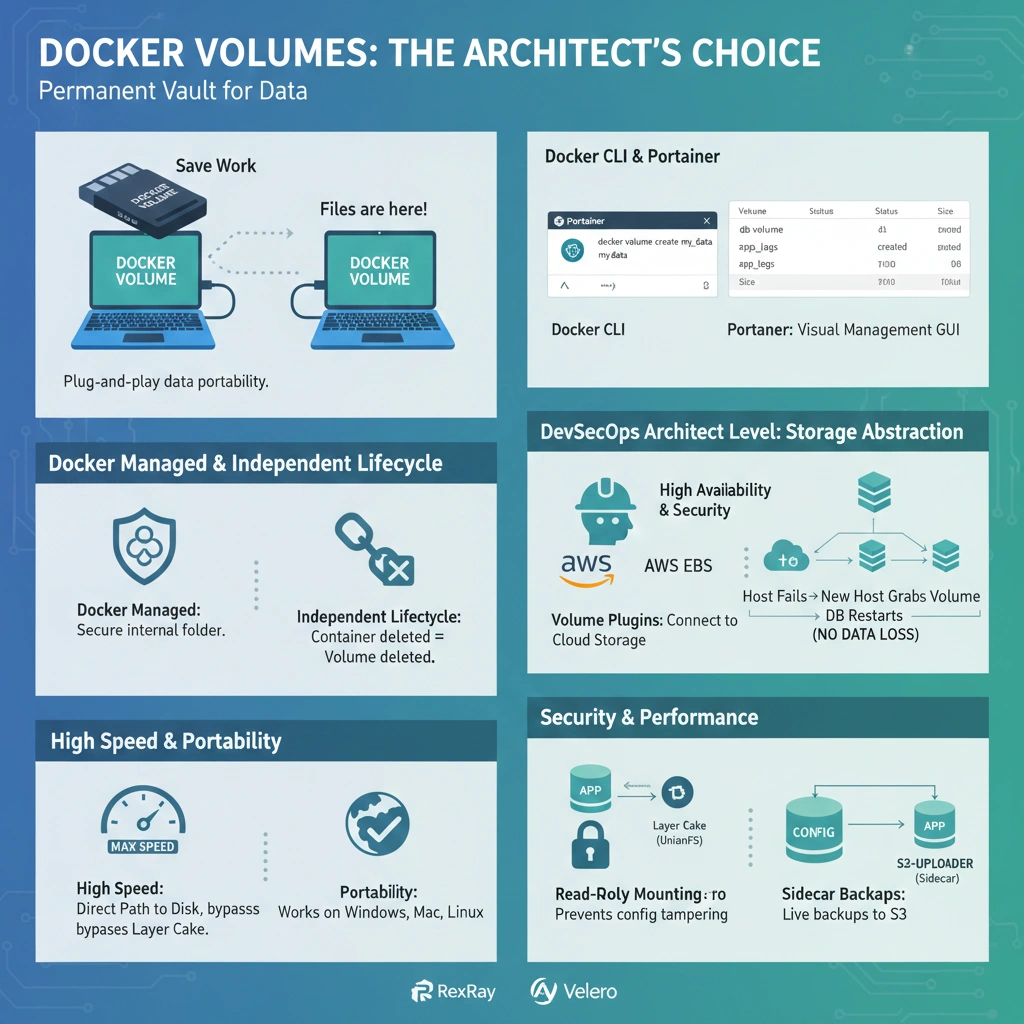
The “External SSD” Think of a Docker Volume as an External Hard Drive. You can plug it into a laptop (Container A), save your work, unplug it, and plug it into a different laptop (Container B). Your files are still there, exactly as you left them.
Volumes are managed entirely by Docker, which makes them safer and more efficient than other methods.
- Docker Managed: You don’t need to worry about where the files live; Docker stores them in a secure, internal folder (usually
/var/lib/docker/volumes/). - Independent Lifecycle: Deleting a container never deletes its volume unless you specifically ask (using
docker volume rm). - High Speed: They bypass the “Layer Cake” (UnionFS), allowing your apps to read and write at the maximum speed of your hardware.
- Portability: They work the same on Windows, Mac, and Linux.
- Docker CLI – Use
docker volume createanddocker volume ls. - Portainer – A GUI tool to visually manage and inspect your volumes.
DevSecOps Architect Level: Storage Abstraction
As an architect, you view volumes not just as storage, but as an abstraction layer that enables High Availability (HA) and security.
- Storage Drivers & Cloud Agnostic Design – The default
localdriver is just the beginning. Architectures use Volume Plugins to connect containers directly to cloud storage.- AWS EBS / Azure Disk: Connects a block storage device directly to the container.
- Benefits: If a host node fails, a new node can “grab” the existing EBS volume and restart the database without losing a single byte.
- DevSecOps: Security & Performance
- I/O Isolation: Heavy database I/O in the writable layer can throttle the entire host. Volumes provide a “Direct Path” to the disk, ensuring consistent IOPS.
- Read-Only Mounting: You can mount a volume as
:ro(Read-Only). - Strategy: Mount your app’s configuration volume as read-only. Even if an attacker compromises the app, they cannot modify the config files.
- Sidecar Backups: Architects use a “Sidecar” pattern. A secondary container (like an S3-uploader) mounts the same volume as the primary app to perform live backups without downtime.
- RexRay – An advanced storage orchestration engine for various platforms.
- Velero – Used for backing up and migrating persistent volumes.
–
Use Case: Database Persistence
- Scenario: You are running a PostgreSQL database in a container.
- Problem: Without a volume, every
INSERTcommand writes to the slow Writable Layer. If the container restarts for an update, your entire database is wiped. - Solution: Mount a named volume to
/var/lib/postgresql/data. Now, the database writes at native speed, and you can upgrade the Postgres image version safely while keeping your data.
–
–
Technical Challenges
| Challenge | Impact | Architect’s Strategic Solution |
|---|---|---|
| Zombie Volumes | Unused “Dangling” volumes wasting disk space. | Pruning: Schedule docker volume prune -f in your CI/CD maintenance pipelines. |
| RWX Support | Multiple containers on different hosts needing the same data. | Network Storage: Use drivers for NFS or AWS EFS to allow concurrent Read-Write-Many access. |
| Permission Drift | Root-owned volumes causing “Permission Denied” errors. | User Mapping: Use the --user flag in Docker or set specific GIDs in the volume mount. |
| Data Visibility | Hard to inspect volume contents from the host OS. | Inspection: Use docker run --rm -v volume_name:/data alpine ls /data for quick audits. |
–
Practical Lab: Volume Sharing
- Create a Volume:
docker volume create shared_data
- Container 1 (The Writer):
docker run -it --name writer -v shared_data:/app alpine sh
- Inside:
echo "Hello from Writer" > /app/note.txt
- Container 2 (The Reader):
docker run -it --name reader -v shared_data:/app:ro alpine cat /app/note.txt
- Result: Container 2 sees the file immediately, even though it’s a completely separate container!
–
Cheat Sheet (Storage Comparison)
| Feature | Writable Layer | Bind Mounts | Volumes (Recommended) |
|---|---|---|---|
| Best For | Ephemeral/Temp files | Dev source code | Production Data/Databases |
| Managed By | Docker (Internal) | User (Host Path) | Docker (Managed Storage) |
| Performance | Slowest (CoW) | Fast (Native) | Fast (Native) |
| Persistence | None (Lost on delete) | Permanent | Permanent |
| Portability | Low | Low (Path dependent) | High (Platform independent) |
7.3. Bind Mounts: The Developer’s Choice
In the Docker ecosystem, Bind Mounts represent the most direct connection between your host machine and the container. While volumes are managed by Docker, Bind Mounts are a raw link to your local filesystem.
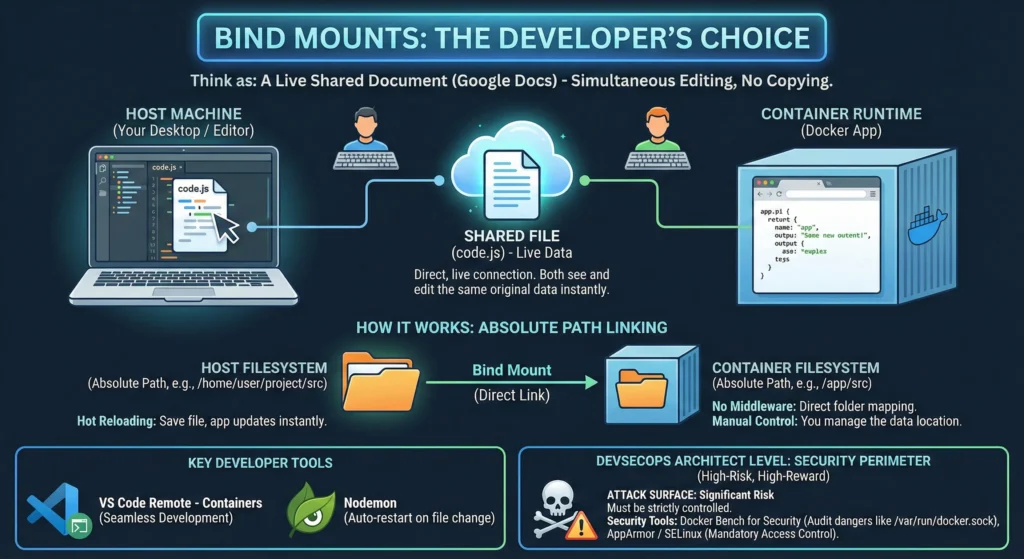
Think as: A Live Shared Document (like Google Docs). Two people are looking at and editing the exact same file at the same time. There is no “copying” involved; they are both touching the same original piece of data.
Bind mounts rely on the absolute path of the host machine. They are primarily used during the development phase.
- Hot Reloading: Developers love bind mounts because they can keep their code editor (VS Code/Sublime) open on their desktop. The moment they save a file, the containerized app detects the change and updates without needing a restart.
- No Middleware: There is no Docker “abstraction.” It is just a direct mapping of
Folder AtoFolder B. - Manual Control: You are responsible for the data. If you move the folder on your computer, the “link” breaks, and the container will see an empty directory.
- VS Code Remote – Containers – Seamlessly uses bind mounts to develop inside a container.
- Nodemon – Often used inside containers with bind mounts to auto-restart apps on file changes.
DevSecOps Architect Level: The Security Perimeter
For an Architect, Bind Mounts are a “High-Risk, High-Reward” feature. They provide power but create a significant Attack Surface.
- Docker Bench for Security – Checks for dangerous bind mounts (like mounting the Docker socket).
- AppArmor / SELinux – Mandatory Access Control levels to restrict what bind mounts can do.
Use Case: Local Web Development
- Scenario: You are building a React.js application.
- Problem: Rebuilding the Docker image every time you change a CSS color takes 2 minutes.
- Solution: Use a bind mount in your
docker-compose.yml:YAMLvolumes: - .:/usr/src/app # Maps current folder to app folderNow, CSS changes reflect in milliseconds.
–
–
Technical Challenges
| Challenge | Impact | Architect’s Strategic Solution |
| Host Escape | Attacker takes over the physical server. | Principle of Least Privilege: Use :ro and never mount /var/run/docker.sock unless absolutely necessary. |
| Permission Hell | Container creates a file that the developer cannot edit/delete. | User Remapping: Run container with --user $(id -u):$(id -g) to sync file ownership. |
| OS Incompatibility | Hardcoded C:\Users paths fail on Linux CI/CD. | Abstraction: Use relative paths (./config) in Compose files to ensure cross-platform compatibility. |
| I/O Latency | Slow performance on Mac/Windows (gRPC/Osxfs). | Optimization: Use VirtioFS or the :delegated flag to tell Docker that the host view is the “source of truth.” |
–
Practical Lab: The Read-Only Config Test
- Create a config on host:
echo "Version 1.0" > config.txt
- Run with Read-Only Bind Mount:
docker run -it -v $(pwd)/config.txt:/app/config.txt:ro alpine sh
- Attempt to Sabotage: Inside the container, try
echo "Hacked" > /app/config.txt.- Result: You will get
Read-only file system. The host configuration is protected!
- Result: You will get
–
Cheat Sheet
| Aspect | Bind Mounts | Volumes |
| Control | You manage the path | Docker manages the path |
| Security | Higher Risk (Host exposure) | Lower Risk (Isolated) |
| Primary Use | Source code, local configs | DB data, logs, production storage |
| Cloud Ready | No (Host specific) | Yes (Supports AWS/Azure drivers) |
| Speed | Native (but slow on Mac/Win) | Native (Optimized) |
7.4. tmpfs Mounts
Think of a tmpfs mount as a Digital Etch-a-Sketch. You can write data on it incredibly fast, but the moment you turn it over or shake it (stop the container), every single mark is wiped clean instantly. Nothing is ever carved into the plastic; it only exists as long as the device is active.
A tmpfs mount is unique because it never touches your Hard Drive or SSD. It lives entirely in the computer’s RAM (Memory).
- Lightning Speed: Since RAM is significantly faster than any SSD, tmpfs is the fastest storage type available in Docker.
- Volatility: “Volatile” means temporary. If the container stops, crashes, or is deleted, the data is gone. It cannot be recovered.
- Linux Exclusive: This is a native Linux feature. While it works on Mac and Windows, it does so through the hidden Linux Virtual Machine that runs Docker.
- Private Storage: Unlike Volumes, a tmpfs mount cannot be shared between containers. It is a private “fast-lane” for one specific container.
4. Use Case: High-Speed Session Handling
- Scenario: A web application uses a “Session Cache” to keep users logged in.
- Problem: Writing session files to the disk is slow and wears out SSDs with constant tiny writes.
- Solution: Mount the session directory as a
tmpfs. - Result: User logins become nearly instantaneous, and the security risk is lowered because session tokens are wiped if the container is breached and restarted.
–
Technical Challenges
| Challenge | Impact | Architect’s Strategic Solution |
| OOM (Out of Memory) | Container fills RAM, crashing the Host OS or other containers. | Limit Size: Always use the size option (e.g., size=256m) to prevent runaway memory usage. |
| Data Loss on Restart | App fails because required “state” files were wiped. | Separation of Concerns: Use tmpfs only for transient data (caches, sockets). Use Volumes for stateful data. |
| Non-Native Overhead | Slower performance on Windows/Mac due to VM translation. | Deployment Policy: Ensure production clusters run on bare-metal Linux or Linux-native VMs. |
| Permission Denied | App cannot write to the memory mount. | Mode Setting: Use mode=1777 (sticky bit) to allow the app user to write to the mount securely. |
–
Practical Lab: Creating a Secure RAM Disk
- Launch a container with a 10MB RAM limit:
docker run -d -it --name ram-disk --tmpfs /app/cache:size=10m,mode=1777 alpine sh
- Verify the mount:
docker exec ram-disk mount | grep tmpfs
- Test the volatility:
docker exec ram-disk sh -c "echo 'secret' > /app/cache/data.txt"docker restart ram-diskdocker exec ram-disk ls /app/cache/data.txt- Result:
ls: /app/cache/data.txt: No such file or directory. The data is gone!
- Result:
–
Cheat Sheet
| Feature | tmpfs Mount | Volume / Bind Mount |
| Storage Medium | RAM (Memory) | Disk (SSD/HDD) |
| Persistence | None (Lost on stop) | Permanent |
| Speed | 🚀 Ultra Fast | ✅ Fast |
| Security | Highest (Zero Trace) | Standard |
| Best For | Secrets, Caches, Sockets | Databases, Code, Logs |
7.5. Architect’s Comparison Table
| Feature | Volumes | Bind Mounts | tmpfs Mounts |
| Management | Docker Daemon | User / Host OS | Linux Kernel (RAM) |
| Persistence | Survives container removal | Survives container removal | Wiped on container stop |
| Performance | High (Direct I/O) | High (Direct I/O) | Maximum (Memory Speed) |
| Cloud-Native | Best (Drivers for EBS/S3) | Low (Path dependent) | N/A |
| Security Surface | Isolated from host users | High Risk (Host exposure) | Maximum (Anti-Forensics) |
| Best For | Databases / Production State | Local Dev / Hot Reloading | Secrets / High-freq Caches |
| Tool Link | Docker Volume Guide | Bind Mount Specs | tmpfs Documentation |
This guide dives into the “engine” of Docker storage the Storage Driver. This is the underlying technology that enables the magic of layering and ensures your server doesn’t run out of space when running 100 containers.
7.6. Storage Drivers: The Engine Under the Hood
While Volumes are how you store your data, Storage Drivers are how Docker manages the Image itself.
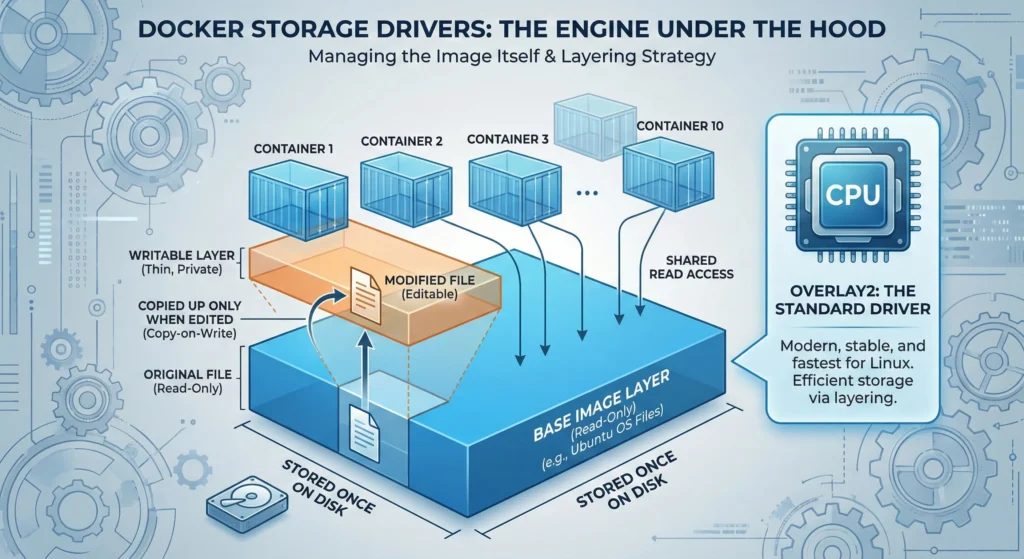
- Layering Strategy: This is why Docker is so fast. If you have 10 containers based on Ubuntu, Docker stores the Ubuntu files only once on your hard drive.
- Copy-on-Write (CoW): This is the driver’s main job. If a container wants to “edit” a file that belongs to the image, the driver makes a quick copy of that file into the container’s private “writable layer.”
- Overlay2: This is the “standard” driver. It is the most modern, stable, and fastest driver for almost every Linux user.
- Docker Info: Use
docker infoto see exactly which driver your system is currently using.
DevSecOps Architect Level: The I/O Logic
As an architect, you must understand that the Storage Driver is a Translation Layer. Every time an app writes to the container’s filesystem, the driver has to calculate where that file lives in the “stack.”
The “Big Three” Drivers
| Driver | Mechanic | Architect’s Strategic Use Case |
| Overlay2 | Merges directories using Linux OverlayFS. | The Industry Standard. Best balance of speed and memory efficiency. |
| Btrfs | Uses “Subvolumes” and block-level snapshots. | Used in Enterprise Linux (SLES) or when you need host-level filesystem snapshots. |
| ZFS | Uses “Datasets” and aggressive RAM caching. | Best for Build Servers where you pull/delete thousands of images daily. |
Bypass the driver for Database I/O. Because of the CoW (Copy-on-Write) penalty, writing to a storage driver is always slower than writing to a Volume.
- Strategy: Image layers should contain only Static Code. All Dynamic Data (Postgres, logs, uploads) must live in a Volume Driver to avoid the “translation tax.”
- Storage Driver Selection Guide: The official matrix for matching drivers to Linux distributions.
Use Case: Massive Microservice Scaling
- Scenario: You are deploying 200 instances of a Python Microservice on a single node.
- Problem: Each microservice image is 500MB. If Docker copied the files for each container, you would need 100GB of disk space.
- Solution: The Overlay2 driver shares the 500MB read-only layers across all 200 containers.
- Result: You use only 500MB + a few MBs of writable space per container, allowing you to fit 200 services on a small server.
–
–
Technical Challenges
| Challenge | Impact | Architect’s Strategic Solution |
| Inode Exhaustion | Disk shows 50% free, but you get “No Space Left” errors. | Monitor Inodes: Overlay2 uses many “hard links.” Use df -i to check inode health and avoid apps that create millions of tiny temp files in the container layer. |
| Driver Incompatibility | Changing a driver (e.g., Overlay2 to ZFS) wipes all images. | Migration Plan: Never change drivers on a live node. Export your data, change the driver, and re-pull images. |
| CoW Latency | Large file edits (like a 1GB log) freeze the container. | Volume Mapping: Redirect all high-write paths to a Volume to bypass the CoW “copy-up” process. |
–
Practical Lab: Identifying your Engine
- Check the Driver:
docker info | grep "Storage Driver"# You will likely seeoverlay2
- Inspect the Mapping:
docker inspect <container_id> --format '{{.GraphDriver.Data}}'# This shows you the “LowerDir” (Read-only) and “UpperDir” (Writable) paths on your host.
- The Performance Test:
- Inside a container:
time dd if=/dev/zero of=/test_cow bs=1M count=100 - Inside a Volume:
time dd if=/dev/zero of=/my_volume/test_vol bs=1M count=100 - Observation: The Volume write will be faster because it avoids the CoW overhead.
- Inside a container:
–
Cheat Sheet
| Driver | Best On | Key Strength |
| Overlay2 | Ubuntu/Debian/CentOS | Speed & Low Memory |
| Btrfs | SLES / Fedora | Snapshots & Quotas |
| ZFS | Ubuntu / Solaris | Data Integrity |
| vfs | Any (Fallback) | Works everywhere, but very slow/bulky |